

Load from Google Sheets
Load a table from a spreadsheet you own, with an authorized Google account instead of a public URL.
A side trip from Get your data in: the same kind of load, from a spreadsheet you own. Drive is where small reference tables get shared between teams, and the only real difference is the authorization — this connector needs an account, not a public URL.
Where you are: you can load a public file already. When you finish: a Storage table built from a spreadsheet, refreshed whenever the connector runs.
Before you start
- A Keboola project. Get a project covers creating or joining one — the Free Plan covers this guide.
- A Google account you can sign in with. The consent screen lives in your own account, so it is the one thing no assistant can click for you.
A spreadsheet in that account to load from. Prepare a spreadsheet below makes one out of a sample file.
Two ways to do this, one page — they are alternatives, not steps. Prompt is what you paste into Kai; UI is the same task click by click, for when you want to see where each setting lives. Either tab reaches the same result.
Kai asks before it changes anything: expect one approval dialog per object it creates, showing the exact configuration it is about to write. Questions that only read do not ask. If confirming each one gets tiring, pre-approve tools in tool permissions. The chat's plan mode button is a different thing: Kai writes the steps down and asks you to approve the plan before it starts — and then still asks for each change. Use it when you want to read the plan first, not to save clicks.
If a step builds something other than what this page describes, say so in the same chat — it edits what it made. Nothing here is one-way.
Two tabs here, not the three the main path uses: the consent screen and the Drive file picker are
browser dialogs in your own Google account, so a terminal cannot start this task. Once the
configuration exists and is authorized, kbagent drives it like any other component,
config row-create to add a sheet and job run --wait to load it.
Prepare a spreadsheet
Section titled “Prepare a spreadsheet”You need a spreadsheet in Drive to load from. Open
Google Sheets, start a blank one, then use File → Import
to import level.csv into it, and name the file Level. Twenty-eight
rows, two columns. Google’s help covers importing a CSV into Sheets
if the menu has moved since we wrote this.
Treat it as a table a colleague shared with you.
Set it up
Section titled “Set it up”Kai can create the configuration (integration setup) but not authorize it. Open Kai Agent in the top bar:
Create a Google Sheets data source configuration called "Level from Sheets".Then do the authorization and the file picking yourself, steps 5 to 9 in the UI tab. Both happen inside Google rather than Keboola: the consent screen, and the Drive picker where you choose the spreadsheet you just made.
Once the spreadsheet is selected, hand it back:
In "Level from Sheets", select the sheet inside that spreadsheet, run the configuration, and tellme what table it created and how many rows it has.Watch the wording in both prompts. The spreadsheet is the file in Drive; the sheet is the tab inside it. The connector asks for them in that order, and so does Kai.
-
Go to Components and click Add Component.

-
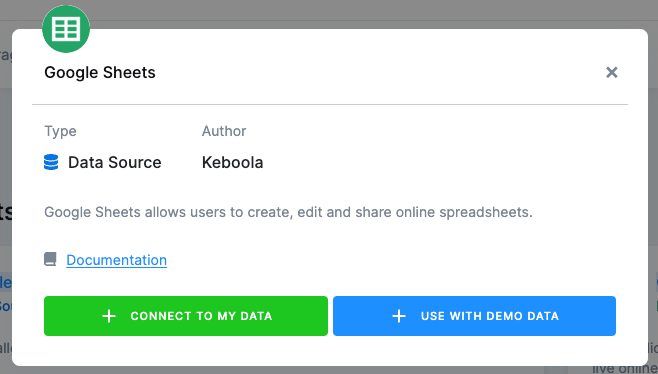
Search for the Google Sheets data source and open it.
-
Click Connect To My Data. Use With Demo Data next to it loads a dataset Keboola prepared, which most connectors offer and which is not what you want here.
-
Name the configuration, describe it, and click Create Configuration.
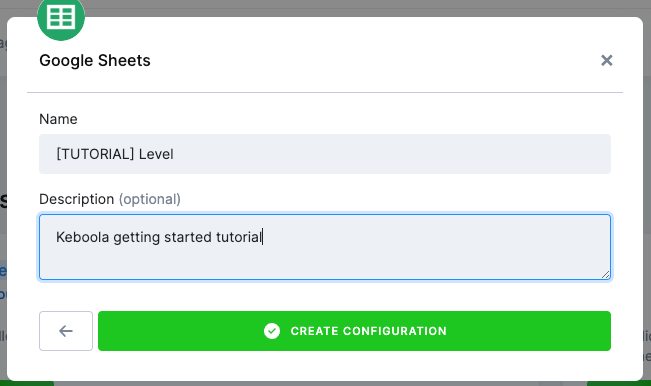
Every component can hold several configurations, which is how one project extracts from two different Google accounts.
-
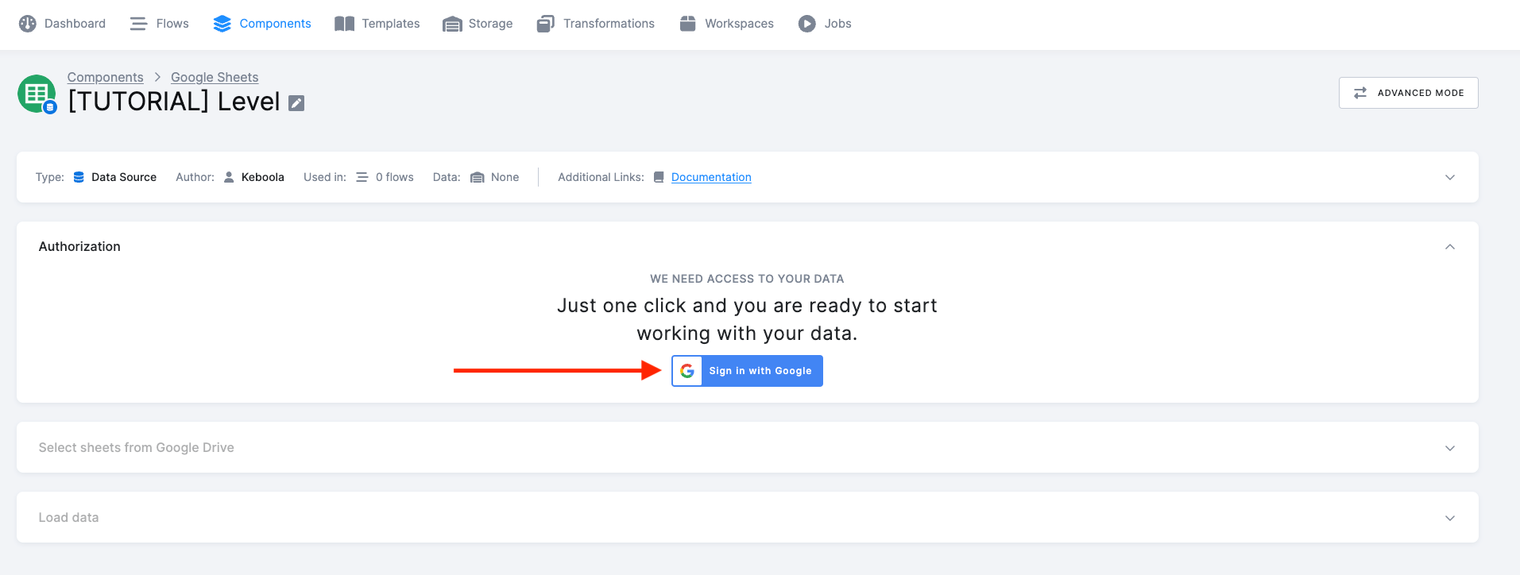
Click Sign in with Google to authorize the connector.
-
Google takes over: it asks which account to use and what Keboola may reach in it. Pick the account holding the spreadsheet you just made and grant the access it asks for. Google’s wording and buttons change from time to time, so follow the screen rather than a script from us.
-
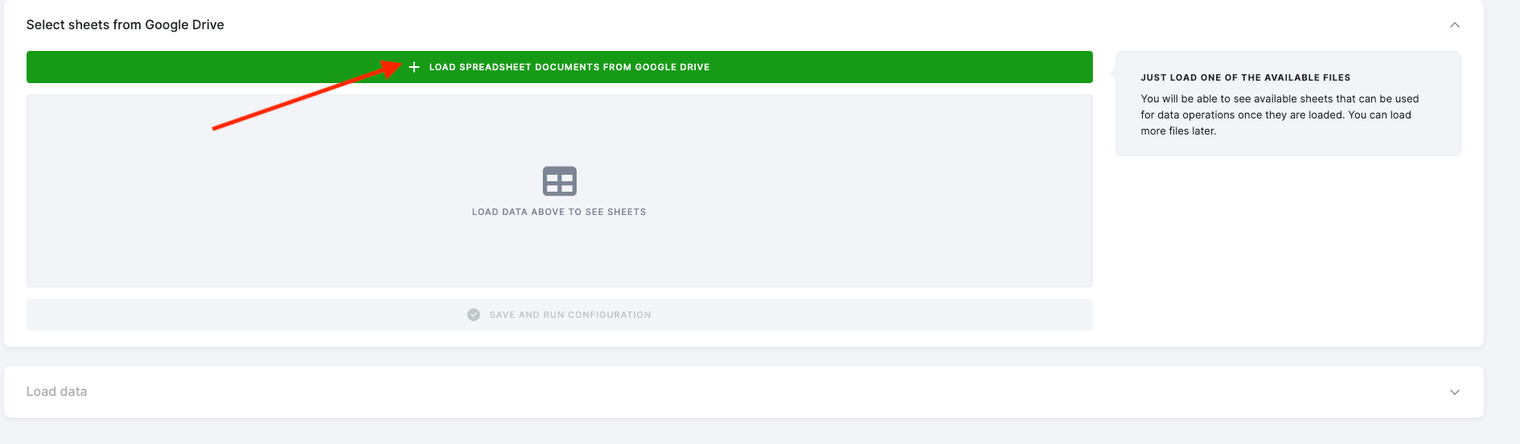
Now choose the Drive files to import.
-
Google asks a second time, now about which files Keboola may see. Allow it for your spreadsheets and continue.
-
Google’s file picker opens. Find the
Levelspreadsheet and choose it. -
Keboola reads the sheets inside that spreadsheet and offers them.
-
Select the sheet and click Save and Run Configuration.
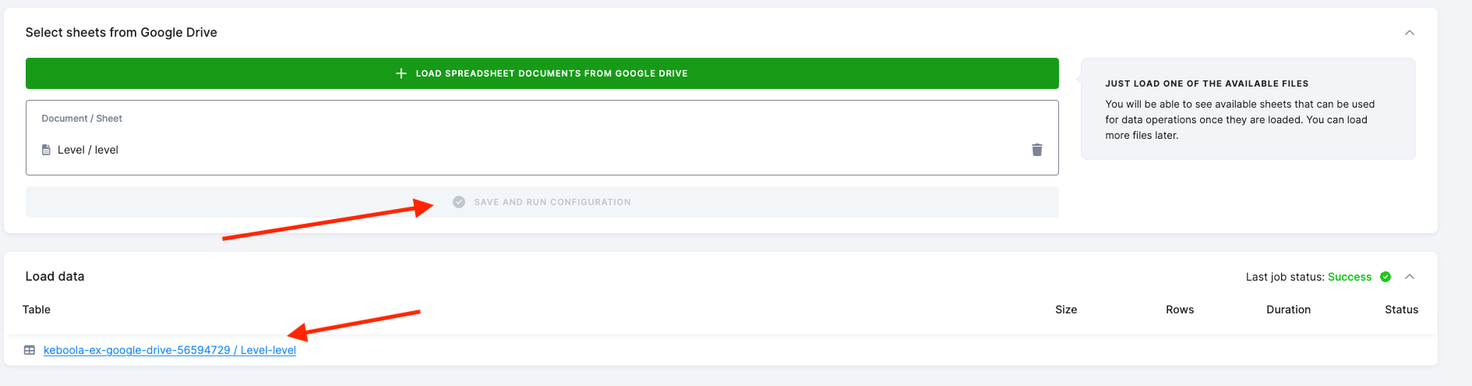
-
The connector creates its own output bucket and table. Click the table name to see what arrived, or go to Storage.
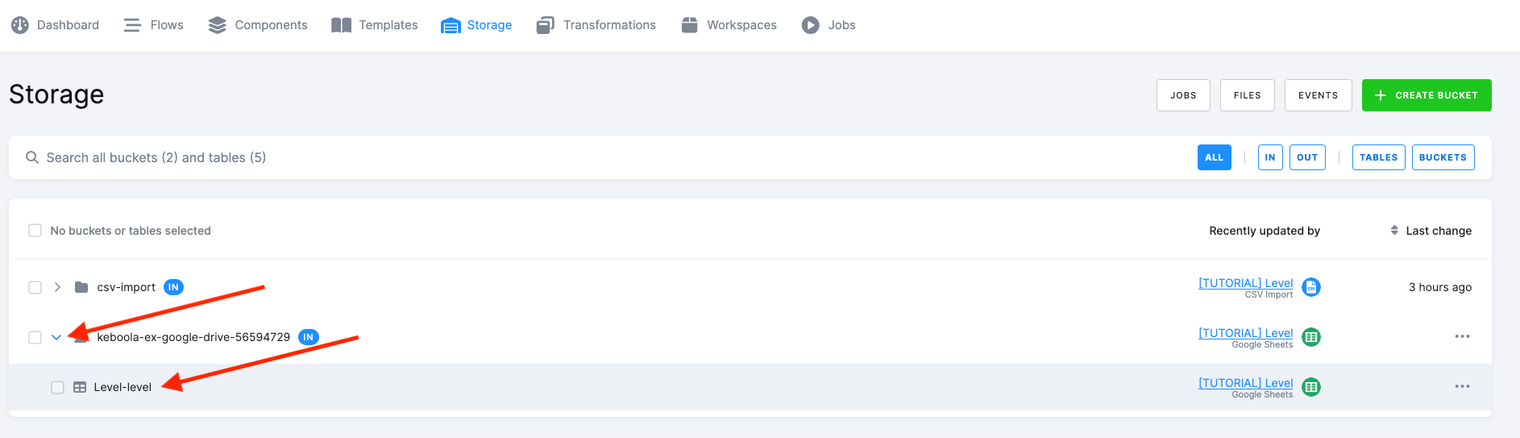
Check it worked
Section titled “Check it worked”The new table holds 28 rows, the ones you uploaded into the spreadsheet, with the column names from its first row.
If it goes wrong
Section titled “If it goes wrong”- The job fails on permissions. The authorization was revoked or expired in the Google account. Re-authorize the configuration; the file selection survives.
- The spreadsheet is not in the picker. It belongs to a different Google account from the one you authorized. Authorize that account, or share the file with this one.
- The table arrives with one row of data and a header called
1,2,3. The sheet’s first row was not treated as a header. Check the sheet settings in the configuration. - Nothing happens after selecting the sheet. Selecting saves the configuration; loading is a separate run. Click Run Component.
Going further
Section titled “Going further”- Load from a database is the other side trip: a source that needs credentials rather than a consent screen.
- Send a table to Google Sheets goes the other way, out of Storage into a spreadsheet.